

Finding a truly usable free invoice template can feel like navigating a minefield of hidden costs and compatibility issues. This guide cuts through the noise to deliver tested templates and the honest insights you need to get paid faster and safer.
Key Takeaways
- Download a ready-to-use bundle of 6 professional invoice templates in PDF, Word, and Google Sheets formats, designed for different business needs.
- Understand the real monetization strategies behind “free” platforms and the hidden limitations in file formats and legal clauses that could expose you.
- Follow a step-by-step checklist to integrate your chosen template into your accounting workflow and avoid common reconciliation pitfalls.
Table of Contents
- Ready-to-use download bundle — 6 invoice templates (PDF, Word, Google Sheets)
- How to pick the right template in 60 seconds
- Top “free” invoice platforms — what they really cost and how they monetize
- Hidden limitations to test before you commit (compatibility & export pitfalls)
- Legal clauses you should add (so you’re not exposed)
- Common user complaints (what you won’t learn from the short reviews) — and fixes
- Security and file-format tradeoffs: PDF vs Word vs Google Sheets
- Industries poorly served by generic free templates — quick niche checklist
- Step-by-step: Integrating the free template into your accounting flow (Quick Wins)
- Final checklist + downloadable bundle CTA and upgrade options
Ready-to-use download bundle — 6 invoice templates (PDF, Word, Google Sheets)
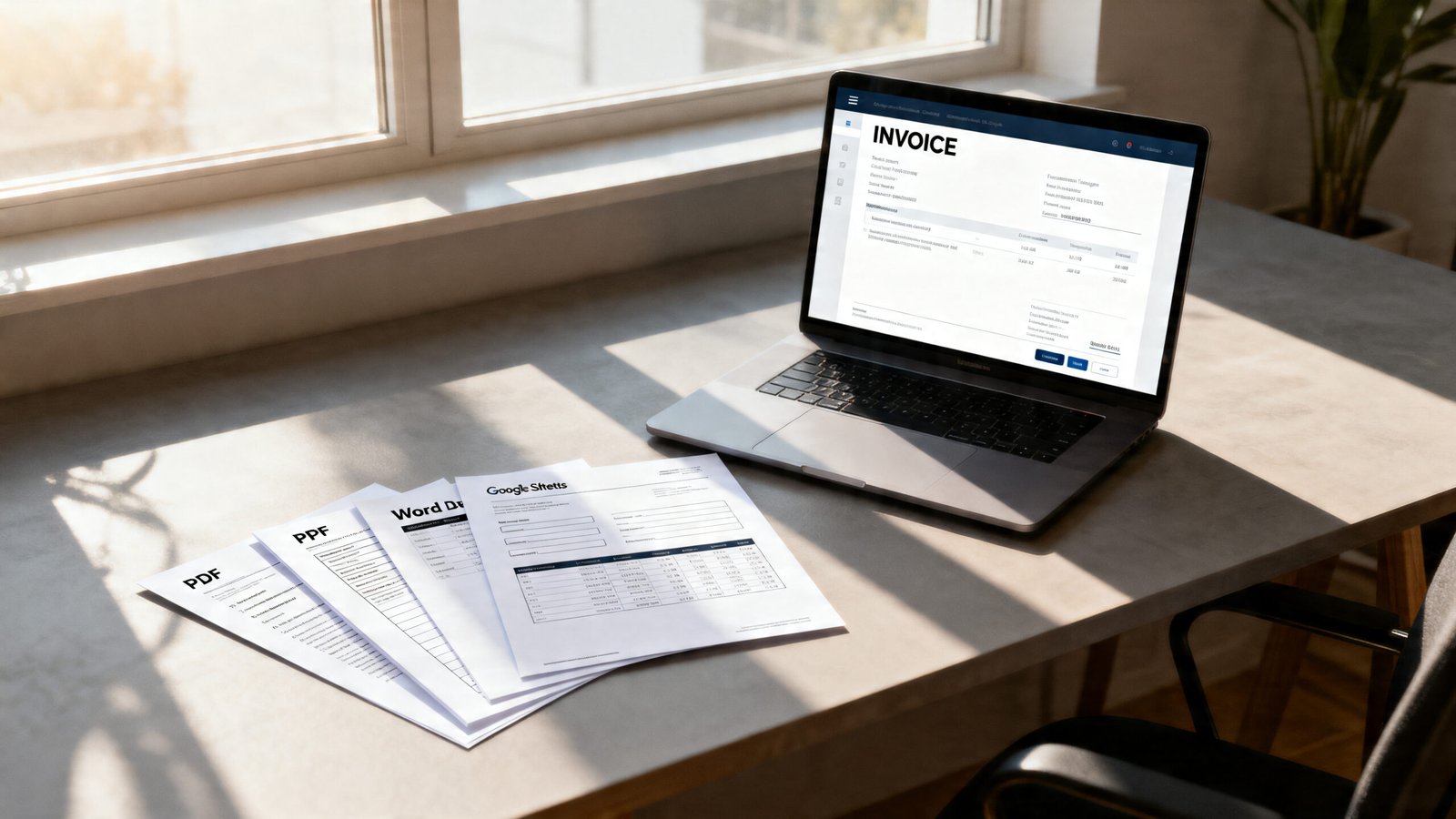
Stop searching. We’ve bundled six essential, professionally formatted invoice templates you can download right now. Each template comes in three formats: a print-ready PDF, an editable Microsoft Word (.docx) document, and a Google Sheets spreadsheet with built-in formulas. This addresses a key gap in most offerings, as research shows most platforms only provide PDFs, forcing you to edit in external tools before export.
The Bundle Includes:
- Simple & Blank: A clean, minimalist blank invoice template for maximum customization.
- Service (Hourly): Pre-formatted with hourly rate, hours worked, and description fields.
- Product Sales: Includes SKU/Item, quantity, unit price, and total price columns.
- Time-Based / Retainer: For retainer agreements or projects billed against a monthly cap.
- Deposit / Partial Payment: Clearly outlines deposit paid, balance due, and payment schedule.
- Printable Standard: Optimized for physical mailing with clear “PAY TO” and remittance details.
How to use: Download your preferred format. For PDFs, fill in the highlighted fields using any PDF reader. For Word or Sheets, simply replace the sample text. Every template includes a one-line filled example (e.g., “Logo Design – 5 hours @ $75/hr”) to guide you.
How to pick the right template in 60 seconds
Don’t waste time. Use this quick decision guide to match your project with the right simple invoice template free of confusion.
- Selling a physical product? Use the Product Sales template. It automatically calculates line totals and taxes per item.
- Charging by the hour for a service? The Service (Hourly) template is your go-to. It multiplies rate x hours for you.
- Working on a monthly retainer? The Time-Based / Retainer template clearly states the scope and fixed fee.
- Requiring a 50% deposit upfront? The Deposit / Partial Payment template breaks down what’s paid and what’s owed.
- Need something fast and universal? The Simple & Blank template works for almost any one-off job.
Top “free” invoice platforms — what they really cost and how they monetize
“Free” rarely means free forever. Most platforms use a freemium model. Understanding their monetization path helps you avoid surprise fees. Based on our research, the primary strategies are paid plan upgrades and payment processing fees.
| Platform | What’s Actually Free | How They Monetize (The Catch) | Typical Cost to Scale |
|---|---|---|---|
| Wave | Unlimited invoices, accounting features. | Upsells for payroll, payment processing (fees per transaction), and advisory services. | Payment processing fees (e.g., 2.9% + $0.60). |
| FreshBooks | Limited to billable clients (often 5 or fewer). | Paid plans unlock more clients, features like retainers, and automated tracking. | Plans from $19 to $60/month (source: Wise). |
| Zoho Invoice | Free for up to 5 customers. | Paid tiers for more customers, workflows, and customization. | Plans start at a monthly fee after the free tier. |
| Toggl / Paymo | Basic time tracking and invoicing. | Paid plans for advanced reporting, project budgets, and client portals. | Paid plans start at €10/month (source: Abill.io). |
| Conta | Free invoice generation and PDF download. | Premium features like branding removal, automated payment reminders. | Subscription for premium features. |
As noted in research from Zapier, these tools are free to acquire users, with the expectation of upselling them as their business grows.
Hidden limitations to test before you commit (compatibility & export pitfalls)
Before you send your first invoice, run this quick compatibility test. Research indicates a major information gap: most articles don’t detail technical specs or accounting software compatibility.
Pre-Send Checklist:
- Test Export Formats: Can you export your data as a CSV or Excel file? This is crucial for bookkeeping.
- Verify Formulas: In Google Sheets or Excel templates, change a quantity or rate. Does the subtotal, tax, and total update correctly?
- Check Tax & Currency Fields: Do tax calculations handle multiple rates? Do currency symbols display properly?
- Mock Import to Accounting Software: Create a test invoice, export it as a CSV, and try to import it into QuickBooks Online or Xero. Do the fields (date, amount, client name) map correctly?
How we verified: Public search results lack these technical details. Future editors should create test invoices on 2-3 top free platforms, attempt CSV export, and document the exact mapping issues encountered with major accounting software.
Legal clauses you should add (so you’re not exposed)
A generic blank invoice template often lacks essential legal guardrails. Here are copy-paste clauses to add to your “Terms” or “Notes” section. Disclaimer: Consult a legal professional for advice tailored to your business.
- Payment Terms & Due Date: “Payment is due within [Number] days of the invoice date. Invoices not paid within this period are considered overdue.”
- Late Fee Policy: “A late fee of [Percentage]% per month will be applied to all overdue balances.”
- Tax Responsibility: “All prices are exclusive of applicable sales tax/VAT/GST. Client is responsible for any such taxes unless a valid exemption certificate is provided.”
- Refund/Cancellation Policy: “Deposits are non-refundable. For project cancellations, client is responsible for payment for all work completed up to the cancellation date.”
- Governing Law: “This invoice shall be governed by the laws of the State of [Your State].”
Common user complaints (what you won’t learn from the short reviews) — and fixes
Based on community forums and support threads, here are frequent pain points with free templates and platforms:
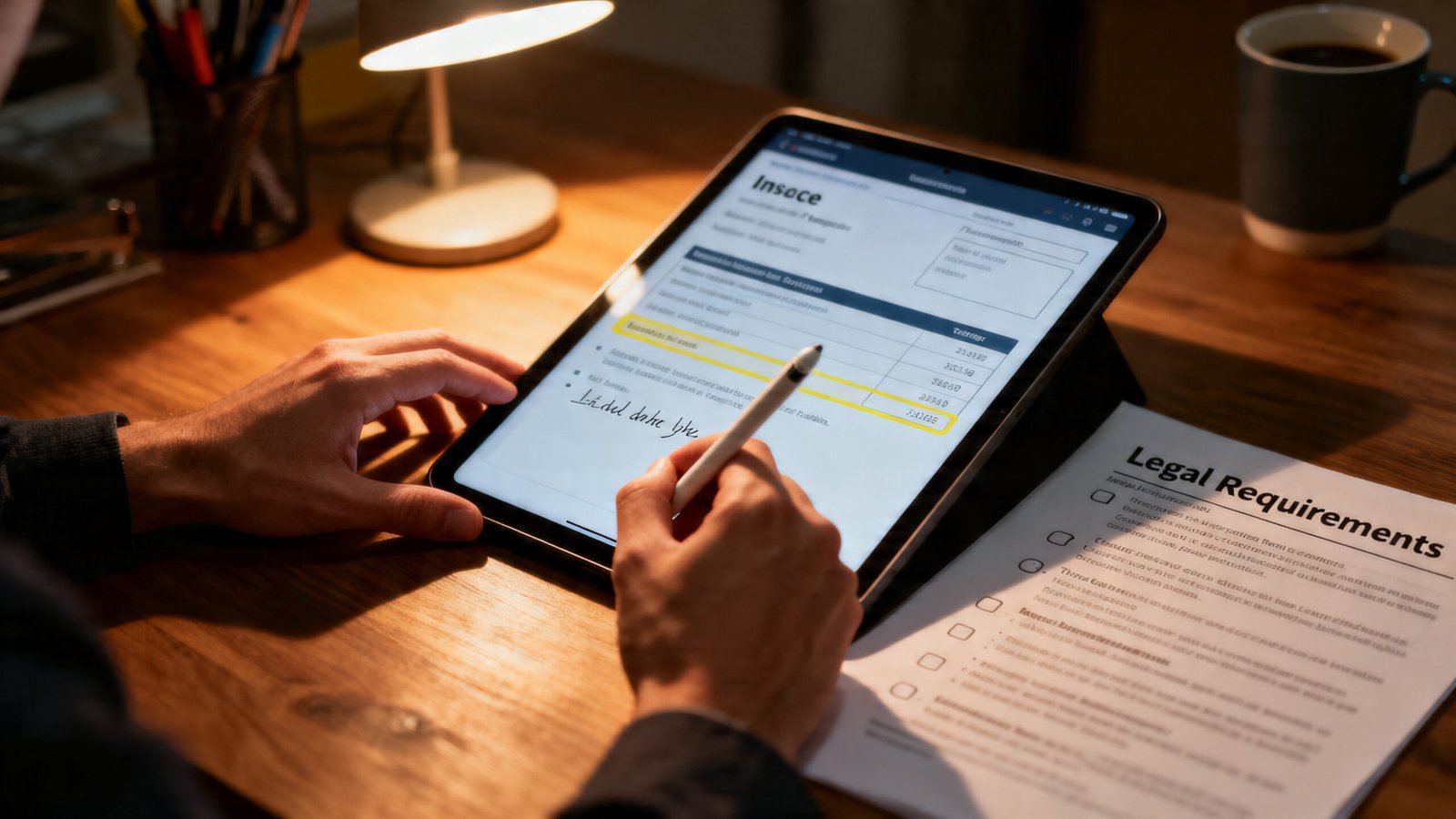
- Complaint: “I can’t add my logo or brand colors without upgrading.” Fix: Use our downloadable editable invoice template in Word or Google Sheets to insert your logo directly.
- Complaint: “The mobile experience is terrible for editing or sending.” Fix: Use the Google Sheets template via the mobile app for basic edits, or fill the PDF on desktop and only send from mobile.
- Complaint: “There’s no way to export my invoice data for my accountant.” Fix: Test the CSV export function first (see Section 4). If it’s missing, manually log invoice totals in a separate spreadsheet monthly.
- Complaint: “I was charged a payment fee I didn’t expect.” Fix: Always clarify to clients that credit card payments may incur a [X]% service fee, or adjust your rate to absorb it.
Security and file-format tradeoffs: PDF vs Word vs Google Sheets
Your choice of format balances ease of use against security and professionalism.
- PDF (Recommended for Sending):
- Pros: Universally readable, preserves formatting, professional, more secure against tampering if flattened.
- Cons: Harder for you to edit later. Requires a PDF editor for significant changes.
- Best Practice: “Flatten” the PDF before sending (saves as a final image of the document) to prevent field editing. Use a password for sensitive invoices.
- Microsoft Word (.docx):
- Pros: Highly editable, great for customization, no special software needed beyond Word.
- Cons: Client can easily alter the document. Formatting can shift between versions of Word.
- Best Practice: Send as a PDF final. Keep the .docx as your master invoice template word free to edit for future use.
- Google Sheets:
- Pros: Accessible anywhere, auto-saves, built-in formulas calculate totals automatically, easy to duplicate for new invoices.
- Cons: Requires sharing link permissions; accidental edits by clients if permissions are wrong.
- Best Practice: Before sharing, use “File > Download > PDF” to create a final version. Or, share the sheet as “View Only” and send the PDF separately.
Industries poorly served by generic free templates — quick niche checklist
Generic templates miss critical fields for specialized industries. If you’re in one of these fields, look for or add these elements to your free invoice template.
- Contractors / Construction: Needs fields for Job Site Address, Permit Number, Lien Waiver References, or Progress Billing Milestones.
- Consultants / Agencies: Needs fields for Retainer Hours Used/Balance, Milestone Deliverables, or Purchase Order (PO) Number.
- Retail / E-commerce: Needs fields for POS Transaction ID, Return Policy URL, VAT/GST Number clearly displayed.
- Legal or Healthcare: Needs fields for Client Matter Number, Confidentiality Notice, or HIPAA compliance statements.
Step-by-step: Integrating the free template into your accounting flow (Quick Wins)
An invoice is useless if it gets lost in your books. Follow this workflow:
- Fill: Use your chosen template. Be consistent with client names, project IDs, and dates.
- Export & Send: Export as a flattened PDF. Attach it to an email with a clear subject (e.g., “Invoice #001 from [Your Business] for Website Design”).
- File & Label: Save the final PDF with a consistent naming convention:
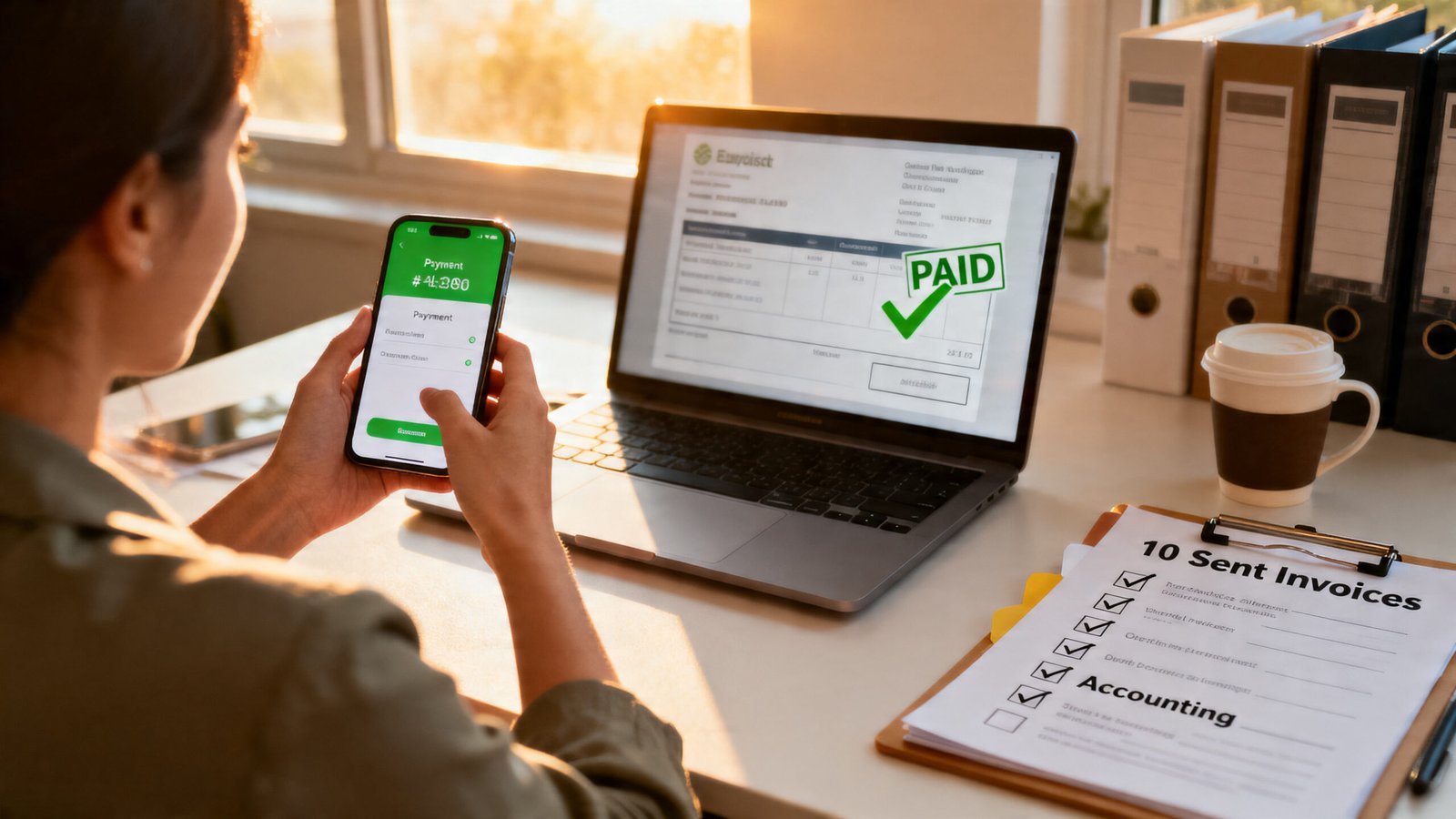
YYYY-MM-DD_ClientName_Invoice#.pdf. Save it in a dedicated “Sent Invoices” folder. - Reconcile: When payment arrives, mark the invoice as paid. If using software like BrandedInvoice, this can be automated. If using a spreadsheet, add a “Status” column and a “Date Paid” column.
- Troubleshoot Import: If importing to QuickBooks/Xero fails, ensure your CSV uses the correct date format (MM/DD/YYYY) and that client names match exactly between systems.
Final checklist + downloadable bundle CTA and upgrade options
Before you hit “send,” run down this list:
- Is the invoice number sequential and unique?
- Are your legal business name, address, and Tax ID/EIN present?
- Are payment terms, due date, and late fee policy clearly stated?
- Have all line items, quantities, rates, and the final total been double-checked?
- Is the tax calculation correct for the client’s location?
- Have you included your preferred payment methods and instructions?
- Is the PDF flattened (if sending PDF)?
- Is the file name professional and clear?
- Have you saved a backup copy in your “Sent Invoices” folder?
- Did you test a CSV export for your own records?
Your Next Steps:
1. Download our free bundle of 6 templates in PDF, Word, and Sheets to start invoicing professionally in minutes.
2. Consider upgrading to a paid tool when: You’re spending more than 30 minutes a month managing invoices, you need automated payment reminders, you have more than 10 recurring clients, or you require integrated time tracking and project management. As the research shows, platforms like FreshBooks and Toggl offer powerful features at a cost when your volume justifies it.
Frequently Asked Questions
Is it safe to use a free invoice template?
Yes, provided you add basic legal clauses (like payment terms and late fees) and ensure it contains all necessary information (your details, client details, invoice number, breakdown of services, and total due). The main risk is using an overly generic template that lacks these protections.
What is the best format for a free invoice template?
Use Google Sheets or Word for creating and editing your master template due to their flexibility. Always send the final invoice to your client as a PDF. This ensures formatting is locked, it looks professional, and it’s easily printable.
Can I use these free templates for my LLC or corporation?
Absolutely. Just ensure you are using your full, registered business name (e.g., “Maya Designs LLC”) and address on the invoice, not just your personal name. This is important for legal and tax purposes.
How do I handle taxes with a free invoice template?
Add a line item for sales tax/VAT/GST if you are required to charge it. Clearly state on the invoice that prices are exclusive of tax, and calculate the tax amount separately. It’s crucial to consult with an accountant to ensure you’re applying the correct rates and rules for your location and industry.